Licensing Journey In Android JioImmerse
Use this developer console link to upload your application: developer.jiorealityos.com
Production Key
Overview
To create a licensed application, the following steps have to be performed.
- Get the application ready in unity.
- Create a Google Play Console account, if you don't have one already.
- Create an application in the Google Play Console and upload a build in internal testing track.
- Get SHA1 App Signing Certificate from the application in Google Play Console.
- Create a project in JioImmerse Developer Console.
- Create an application in JioImmerse Developer Console.
- Enter the SHA1 key in the JioImmerse Developer Console.
- Copy the production key from Dev Console and enter it in Editor > Configure License Key popup.
- Your application is now licensed.
Getting the SHA1 key from Play Console
-
Goto your application in Play Console\
(Skip steps 2 - 3, if a build has been uploaded in this Google Play App before).
-
Upload a build in the internal testing track.
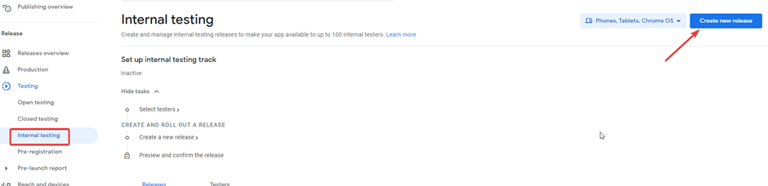
-
Choose the signing key as
Use Google-generatedkey for best security.\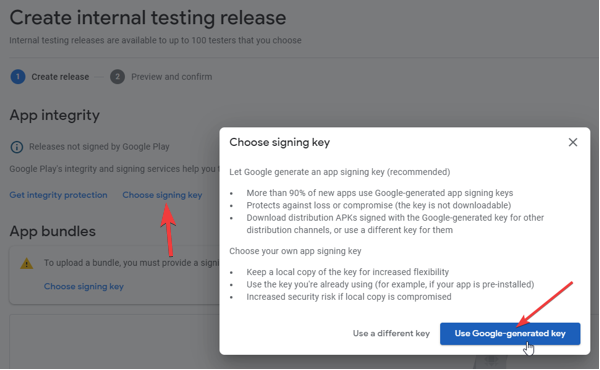
-
Goto Setup > App integrity > App signing
Copy the SHA-1 certificate fingerprint to be entered into the Developer Console.
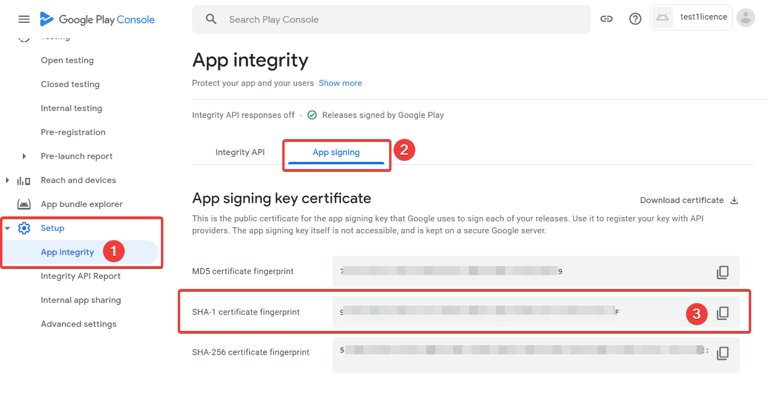
Setting up licensing in Developer Console
Upload your application SHA1 key from the Play Store and enter it in the Application Signature on the Dev Console.
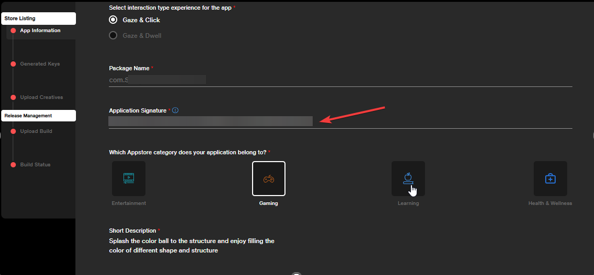
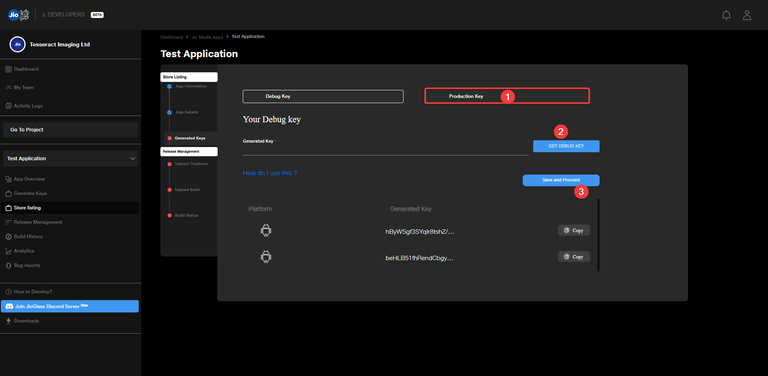
Get the production licensing key to upload in Unity.
- Debug Key - Debug key can be used to test your application.
- Production Key - This key has to be used for licensing the application to be available for users outside your team.
Setting up license key in Unity Editor
To build a licensed application compatible with JioImmerse:
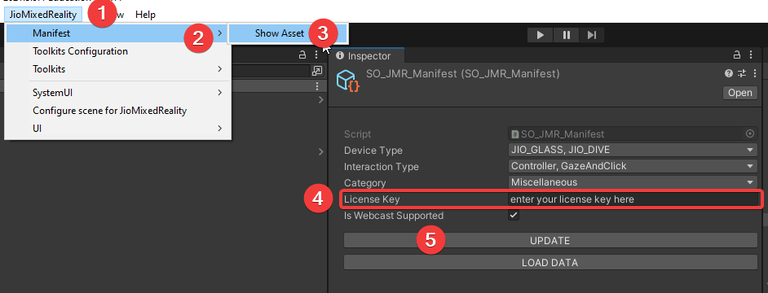
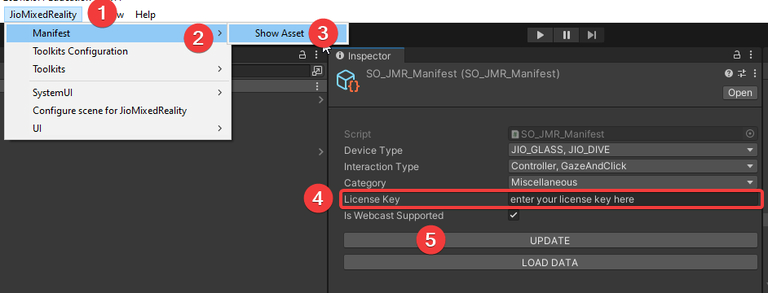
- Goto Unity > JioMixedReality > Manifest > Show Asset > License Key and enter the debug / production key from Developer Console
- Enter the key in the popup in the Unity editor and hit save.
- The application is now licensed. Build the application.
Debug Key
Overview
- Get the application ready in unity.
- Create a Google Play Console account, if you don't have one already.
- Create an application in the Google Play Console, if not present for your application.
- Upload a build in Google Play Console internal testing.
- Get the SHA1 Upload Signing Certificate from the application in Google Play Console.
- Create a project in the JioImmerse Developer Console.
- Create an application in the JioImmerse Developer Console.
- Enter the upload SHA1 key in the JioImmerse Developer Console.
- Copy the debug key from the Developer Console and enter it in the Editor > Configure License Key popup.
- Your application is now licensed for you to test.
- Login into your DemoXR application as a developer with developer console credentials.
- Run your application with an active internet connection.
Getting the Debug Key
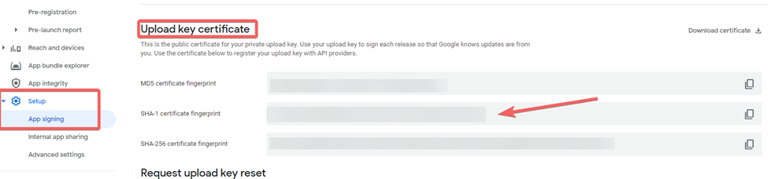
1. Copy the SHA-1 Key from the Google Play Console under the Upload Key certificate.
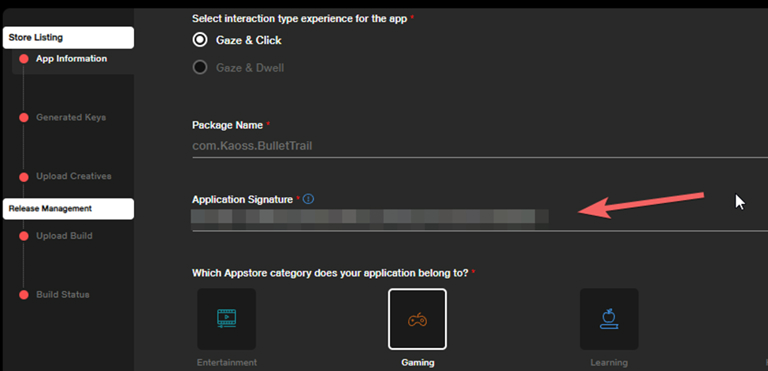
2. Paste the copied SHA -1 key to JioImmerse Developer Console > Application Signature
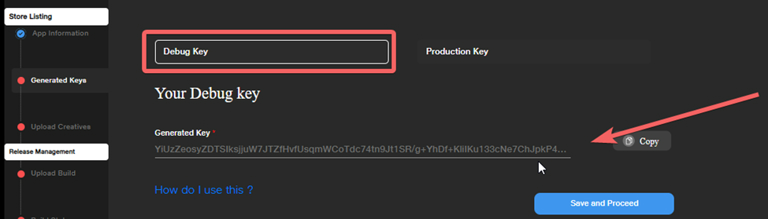
3. Generate and Copy the Debug key from the developer console.
4. Paste your debug key in Unity > JioMixedReality > Manifest > Show Asset > License Key
5. Create a build and install it on your device to run directly.
6. Login with your Jio Developer Console credential on the Demo XR.
Debug key builds must NOT be uploaded on JioImmerse Developer Console or Google Play Console.