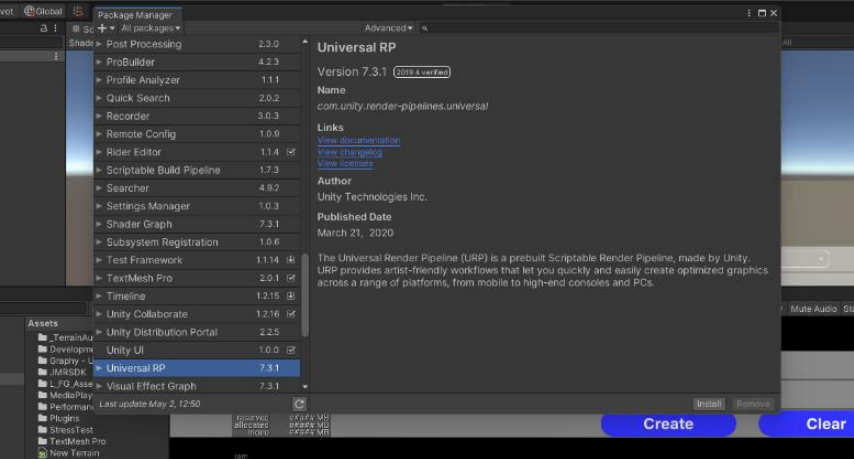
Install URP in your project using the following steps - Window -> Package Manager -> Universal RP
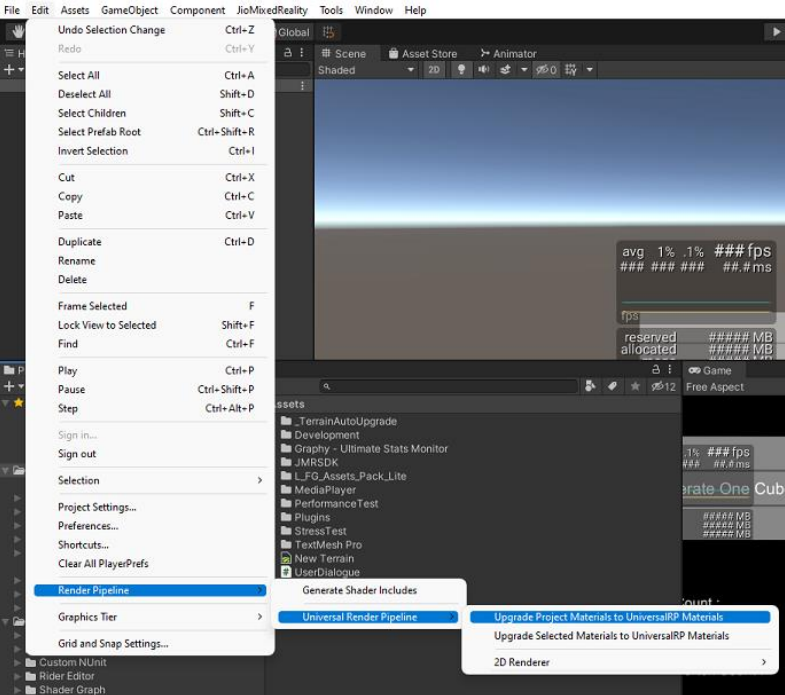
Upgrade materials in the current project to URP materials using the following steps - Navigate to Edit -> Render Pipeline -> Universal Render Pipeline -> Upgrade Project Materials to UniversalRP Materials
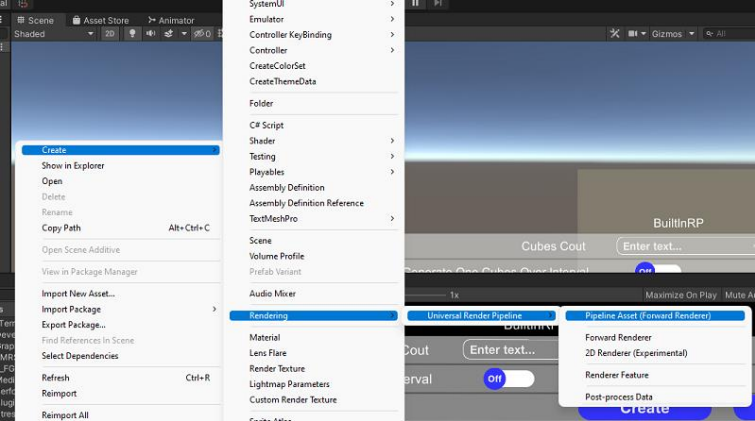
Create UniversalRenderPipeline Asset Right Click in the Asset Folder then Create -> Rendering -> Universal Render Pipeline -> Pipeline Asset (Forward Renderer)
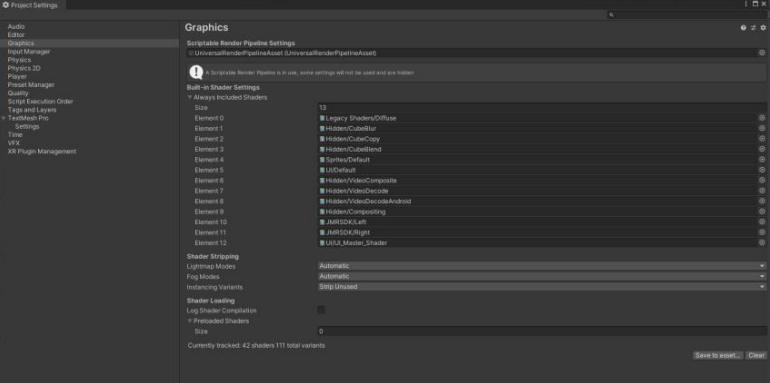
Assign the pipeline asset you have created to the graphic settings. Edit -> Project Settings -> Graphics
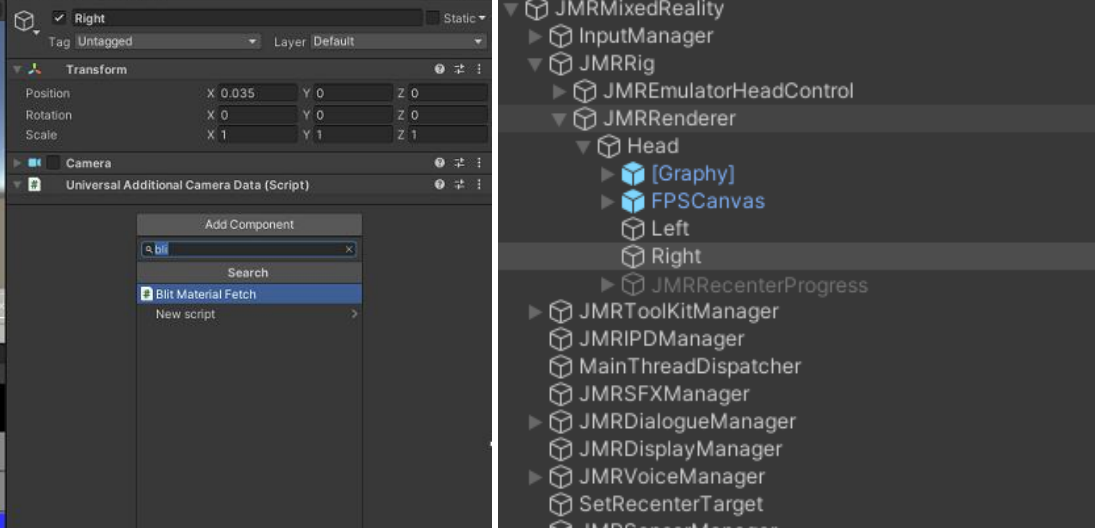
Add BlitMaterialFetch script to the Left and Right Camera in JMRMixedReality prefab under JMRRig -> JMRRenderer -> Head. This script will be in the JMRSDK_URP_Extension folder which you will get after installing the JMRSDK_URP package.
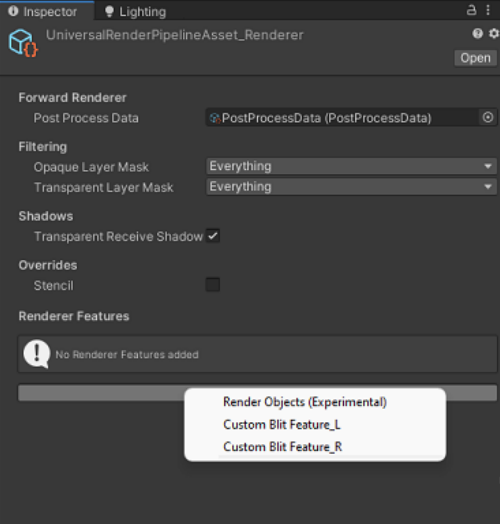
Add the custom render features, CustomBlitFeature_L & CustomBlitFeature_R to your pipeline asset renderer. In this case, we have UniversalRenderPipelineAsset_Renderer.
Replace the Standard shader in JMRSDK>Core>Resources>Shader with the one from JMRSDK_URP_Extension folder.
Remove the BlitMaterialFetch script from the Left & Right cameras which can be found under in JMRMixedReality prefab.
Delete the JMRSDK_URP_Extension folder.
From the package manager remove the UniversalRP package.
Re-Import the JMRSDK packages. This will revert the materials in JMRSDK which got converted to Universal Render Pipeline/Lit back to the built-in standard shader.
Convert all materials from URP to Built-In to make sure shaders are rendered correctly.